How to Spot a Dangerous Video Chat Scam Before You Click
Pages that promise exclusive video-chat material or “private access” are often designed to capture attention, not provide a trustworthy service. A fake leak website may copy the colours, layout and language of a real platform while hiding a dangerous URL, a fake verification screen or a malicious download behind the first click.
The safest response is not to investigate the page further. Check the address, avoid entering credentials, refuse unexpected downloads and leave the site if anything feels rushed or unusual. This guide explains how to recognise the bait, what to do after a click and how to report a suspicious website without helping it spread.
This is a cybersecurity guide for adults. It does not provide access to private recordings, archives or intimate material. If money, account access or personal data has already been lost, contact your bank, account provider and appropriate local authorities.
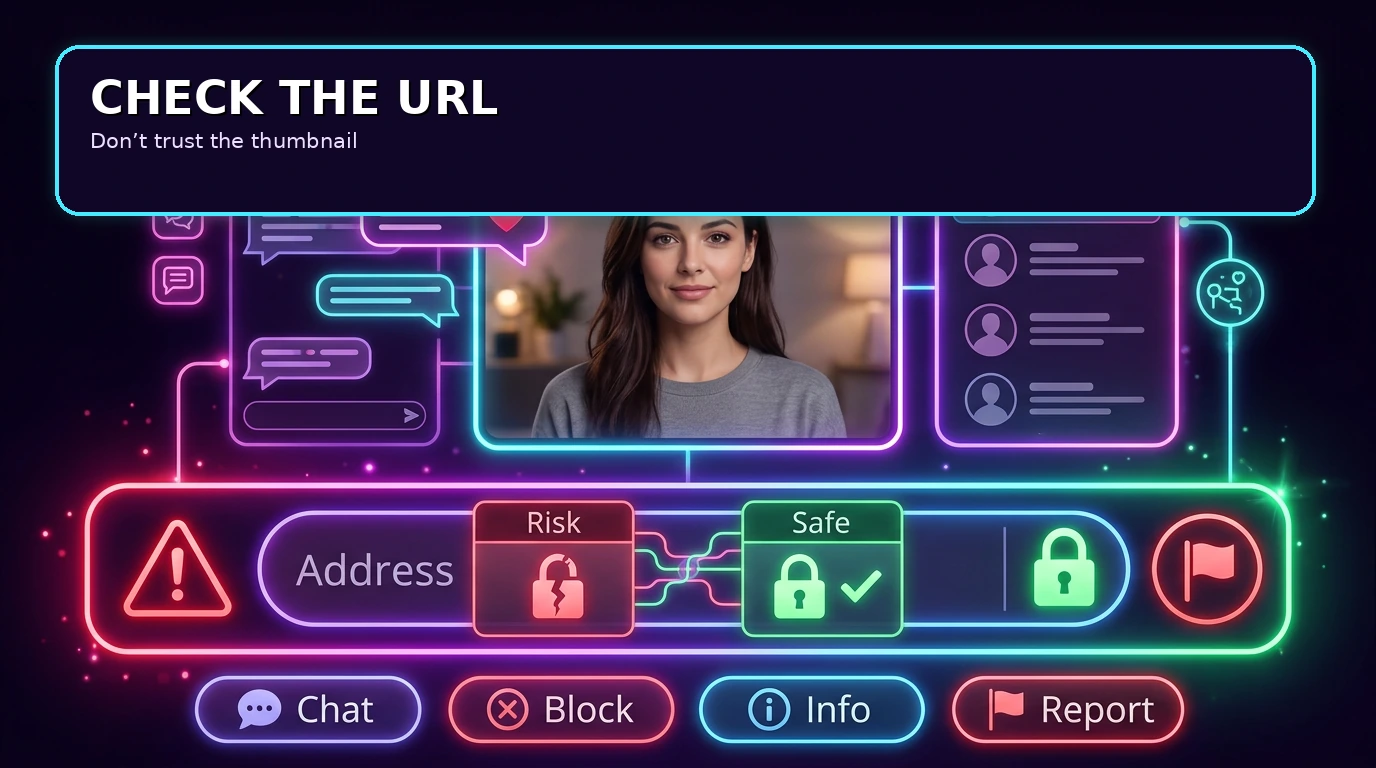
Why fake leak websites are usually phishing bait
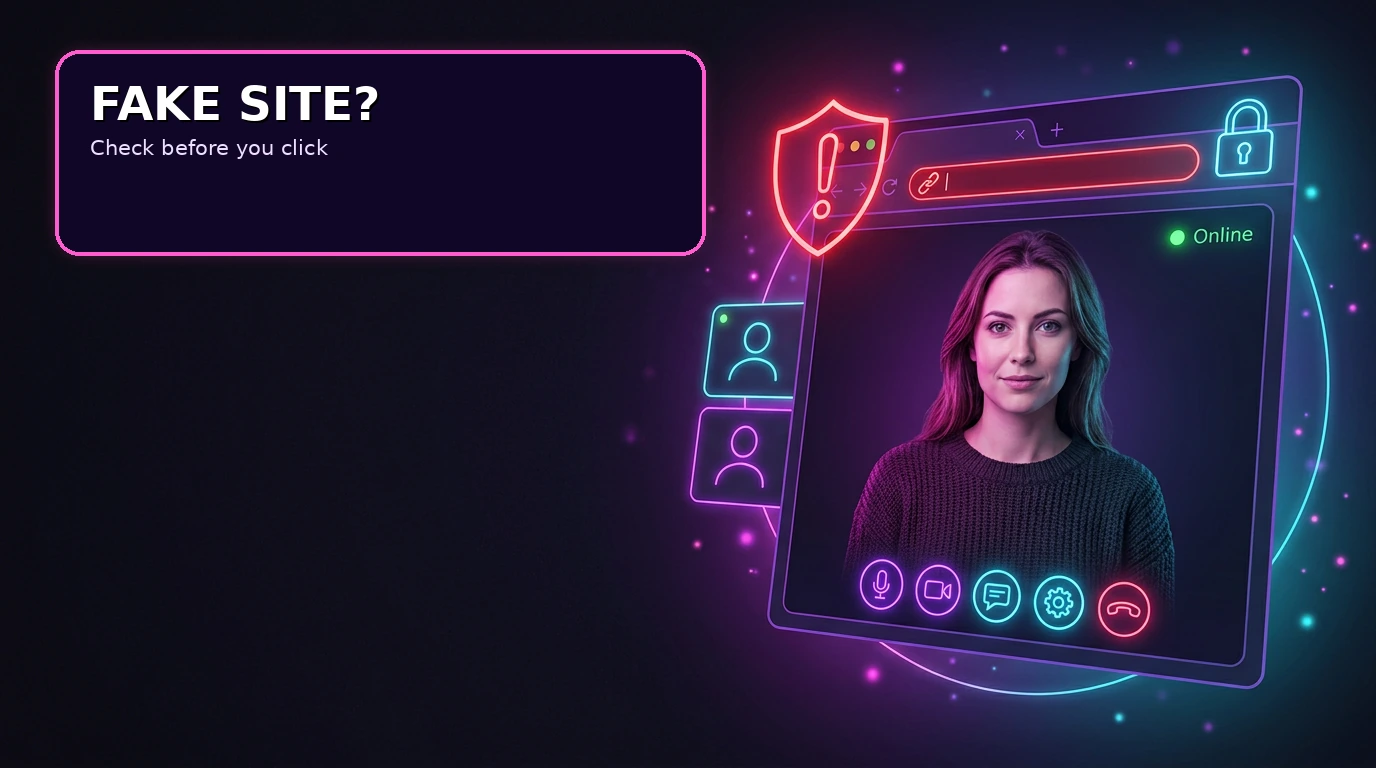
A phishing page imitates something familiar so that you reveal information or take an action you would normally question. The copied design may include a video-chat window, online counters, profile cards, countdowns or a large button that appears to unlock a private feature.
The page does not need to look obviously broken. Attackers can copy professional layouts, use encrypted connections and rotate domains quickly. A padlock only indicates that the connection is encrypted; it does not prove that the site operator is honest or that the page is safe.
The existing clone safety guide explains why visual polish and familiar branding are not enough to establish that a random-chat platform is legitimate.
What a fake video-chat page may try to collect
- Email addresses, usernames and passwords through a copied sign-in form.
- Payment-card details hidden behind “age verification” or access prompts.
- Phone numbers, one-time codes or recovery information.
- Permission to send browser notifications or redirect future searches.
- A download presented as a video player, codec, security scan or browser update.
- Information about your device that helps the attacker target you again.
Malwarebytes’ phishing overview describes how fake messages and lookalike websites are used to steal credentials or financial data. The important distinction is that the page may be dangerous even when no file is downloaded: entering a password can be enough.
Red flags in the page design and URL
Look for combinations of warning signs rather than relying on one detail. A scam page may use a familiar logo while the domain contains extra words, unusual punctuation, a swapped letter or an unexpected country-code ending.
- The page promises instant access and uses a countdown or urgent warning.
- A sign-in form appears before you can see basic information about the service.
- The browser address does not match the organisation you expected.
- A pop-up says your device is infected or that you must install a player.
- The page asks for card details before explaining the price, provider or cancellation process.
- Several buttons lead to the same form or open new tabs without a clear reason.
- The wording pressures you to disable security tools, allow notifications or continue immediately.
Microsoft’s phishing email guidance highlights urgent requests, suspicious senders, mismatched domains, unexpected attachments and requests for sensitive information as common warning signs. The same patterns appear in fake website funnels.
How to check a suspicious URL before opening it
- Stop at the address bar. Read the complete domain from right to left instead of trusting the page logo.
- Compare the spelling. Watch for extra words, doubled letters, hyphens and lookalike characters.
- Do not use a link supplied by a stranger. If you need a legitimate service, type its known address yourself or use a trusted bookmark.
- Check the reason for the prompt. A random page should not need your email password, card number or remote-access tool to display basic information.
- Leave if the page escalates. Do not keep clicking simply to find out what happens next.
The platform reputation guide provides a broader pre-use checklist. It is safer to verify a service before opening a camera, creating an account or sharing personal information.
Why fake verification pages are especially risky
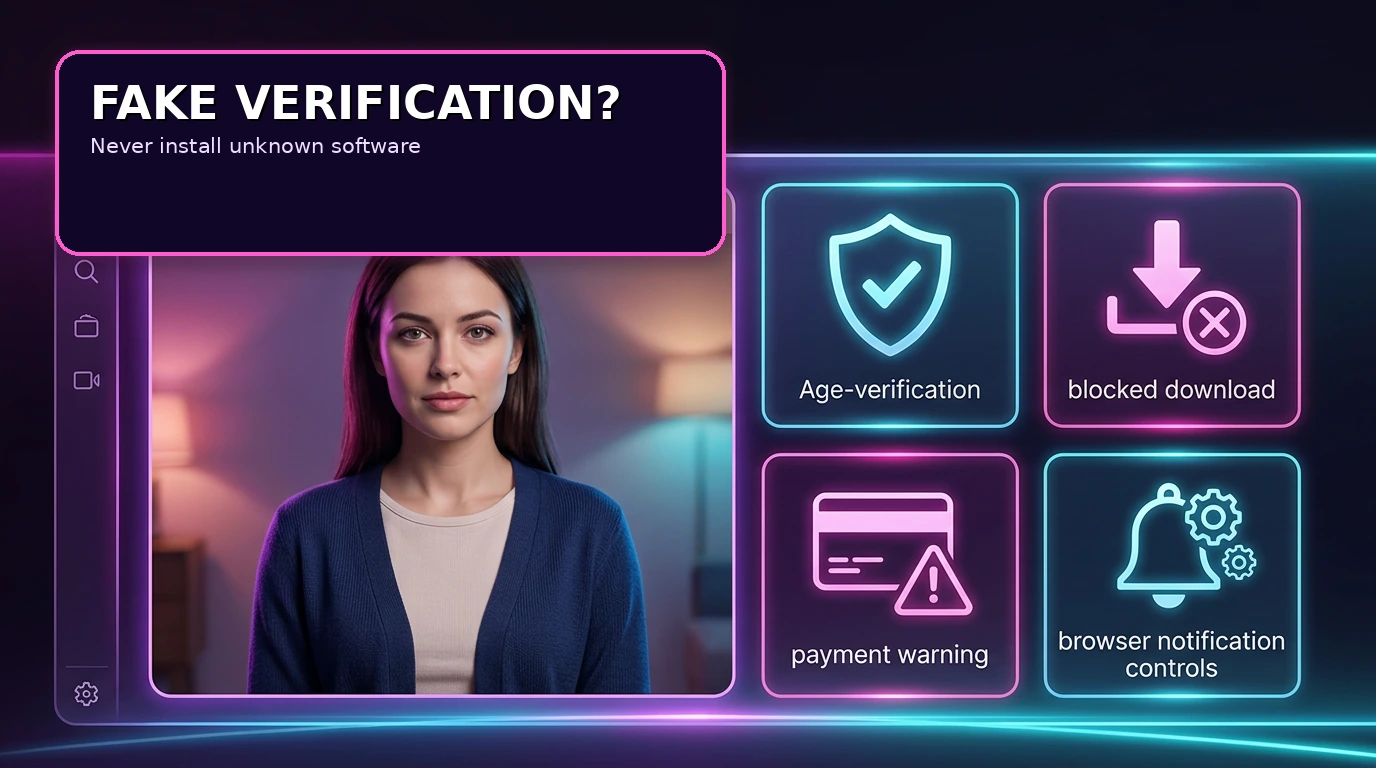
Fake verification often uses a familiar safety idea to make a dangerous request feel normal. The page may ask you to complete a survey, install a browser extension, download a player, allow notifications or enter a card number for a small “verification” charge.
Do not install software because a page claims it is needed to view a video or prove that you are an adult. Close the tab instead. Browser notifications can later send more scam messages, while unknown extensions can read browsing activity or alter search results.
What to do if you clicked but entered nothing
Do not panic. Close the tab, refuse notification permission and remove any download that you did not intentionally request. Check the browser’s downloads list, extensions and notification settings. If the page opened another tab, close that as well.
Update your browser and operating system, then run a security scan from a tool you already trust or obtain directly from its official website. Do not call a number shown in a frightening pop-up and do not grant remote access to someone who claims to be a technician.
What to do if you entered a password or one-time code
Use a different trusted device if possible. Change the affected password through the service’s official address, then change it anywhere else you reused it. Review active sessions, connected applications, recovery details and forwarding rules.
If you entered a one-time code, treat the account as potentially targeted even if the password was correct. Sign out unknown sessions, enable two-factor authentication and contact the account provider through its official support page. The site’s privacy data guide explains why account, device and connection information should be treated as a wider exposure rather than a single password problem.
What to do if you entered card details or downloaded a file
Contact your bank or card provider immediately using the number on the card or the official banking app. Ask about blocking the card, monitoring transactions and disputing anything unauthorised. Do not call a number supplied by the suspicious website.
If you downloaded or opened a file, disconnect the device from the internet if you suspect active malware. Do not keep logging in from that device to change passwords. Use a trusted device for account recovery and ask a qualified technician or security professional to examine the affected system.
Do not delete every file or wipe the device before you have recorded the suspicious URL, filename and time. Those details can help your bank, security provider or local reporting service understand what happened.
How to report a fake website without spreading it
Save the domain, page URL, date and a short description. Do not share the promotional image, private material or malicious download in a public post. Report the domain to the relevant browser, hosting provider, platform and national cybercrime service where available.
The UK’s National Cyber Security Centre provides a scam website reporting service that accepts suspicious URLs. If you are in Australia, the Australian Cyber Security Centre’s phishing guidance explains reporting and recovery steps. Other countries may use different agencies, so choose a local route rather than assuming one national process applies everywhere.
Which response fits the problem?
| What happened | First response | What not to do |
|---|---|---|
| You only viewed the page | Close it, block notifications and record the URL. | Do not keep clicking to test the site. |
| You entered a password | Change it from the official service and sign out other sessions. | Do not reuse the same password elsewhere. |
| You entered card details | Call the bank or card provider using an official channel. | Do not wait for a transaction to appear. |
| You downloaded a file | Disconnect if needed and get trusted security assistance. | Do not open it again or log in from that device. |
| You received a threat | Preserve the message and report the account or site. | Do not pay or send more information. |
Common mistakes after visiting a suspicious site
- Trusting the logo or padlock instead of reading the domain.
- Entering a real password to see whether a copied login form works.
- Downloading a “player”, “codec”, “verification app” or “security tool”.
- Calling a phone number shown in a fake virus warning.
- Paying a small verification charge without checking the merchant.
- Sharing the URL publicly and sending more visitors to the scam.
- Changing only one password while leaving email sessions active.
FAQ: fake leak websites and phishing scams
Can a fake website look professional and still be dangerous?
Yes. Design quality, HTTPS and copied logos do not prove that the operator is trustworthy. Check the domain, the request being made and the website’s independent reputation.
Should I enter a fake password to test the login form?
No. Do not provide any credentials. Leave the page and report the URL through an appropriate service.
What if the site asks me to install a video player?
Close it. A browser page should not require an unknown player or extension to show basic information. If you already installed something, disconnect when appropriate and seek trusted technical help.
What if I only entered my email address?
Expect possible follow-up phishing. Watch for unusual messages, avoid links in them and strengthen the email account with a unique password and two-factor authentication.
Where can I review site-side privacy information?
The site’s Privacy Policy describes its own data practices. It cannot make an unknown third-party website safe, so do not submit passwords, payment details or downloads through a suspicious page.